
Every online store loses sales to the same silent problem: uncertainty. A shopper likes the look of a product but cannot tell how big it really is, how the fabric moves, how loud it runs, or whether it will actually solve their problem. So they hesitate, they leave, and they buy somewhere that answered the question. WooCommerce product videos are the fastest way to answer it before the shopper ever thinks about closing the tab.
Product photos rarely settle those doubts. Video does. A ten-second clip of a product in use removes more hesitation than a page of description ever will, which is why WooCommerce product videos have quietly become one of the most reliable ways to increase revenue without touching your prices or your ad budget.
The catch has always been the effort. Adding video to WooCommerce product pages traditionally meant shortcodes, template edits, or a fight with your theme. This guide explains why WooCommerce product videos work, walks through seven proven ways to use them, and shows how to get them live on your store in about four minutes per product.
What you will find in this guide
- Why WooCommerce product videos increase sales
- The real barrier: getting video onto your product pages
- 7 proven ways to use WooCommerce product videos
- How to add a product video in four steps
- Features that actually matter for conversion
- Theme compatibility
- Free vs PRO comparison
- Keeping your product pages fast
- Video SEO and structured data
- Mistakes to avoid
- How to measure the result
- Frequently asked questions
Why WooCommerce Product Videos Increase Sales
WooCommerce product videos sell for reasons that become obvious the moment you stop thinking like a store owner and start thinking like a shopper standing in front of a screen with a credit card they are not sure they want to use.
- It answers objections before they become abandoned carts. Scale, texture, weight and movement are almost impossible to convey in a still image, no matter how good your photographer is.
- It builds trust. Seeing a real product in motion signals that the store actually has it in hand, uses it, and stands behind it. That matters enormously for a brand the shopper has never bought from before.
- It keeps shoppers on the page longer. More dwell time gives your copy, your reviews and your offer more opportunity to do their job.
- It reduces returns. Customers who knew exactly what they were buying are far less likely to send it back, and returns quietly eat margin that no ad campaign can replace.
- It gives search engines more to work with, particularly when the clip is marked up with proper structured data.
None of this requires a studio, a crew, or a budget line. A steady phone clip showing the product from a few angles in decent daylight will usually outperform a photo-only gallery. The stores that win with WooCommerce product videos are almost never the ones with the best production values, they are the ones that actually shipped the video.
It also helps to be honest about where WooCommerce product videos move the needle most. Uncertainty is not evenly distributed across a catalog.
Clothing, furniture, tools, kitchen equipment, instruments, pet products and anything mechanical all carry a heavy load of unanswered questions. A pack of screws does not. Start where the doubt is thickest. If you want the full checklist, it sits alongside everything else in our WooCommerce guides.

The Real Barrier: Getting WooCommerce Product Videos onto Your Pages
If video is this effective, why do most WooCommerce stores still run photo-only galleries? Because the technical path has been genuinely annoying, and annoying things do not get done.
The native WooCommerce product gallery was designed for images.
Store owners have historically had to choose between three bad options: embedding a video somewhere below the description where nobody scrolls, pasting shortcodes into the product content and hoping the layout survives, or paying a developer to modify gallery templates, and then repeating that work every time the theme updates. Multiply any of those across a catalog of two hundred products and the project dies before it starts.
WooCommerce product videos need a home inside the gallery itself, and this is exactly the gap that Video Gallery for WooCommerce was built to close. It puts your clips inside the native product gallery, sitting right alongside the images, without code, shortcodes or theme edits. The shopper sees motion in the place they already look, and you never open a template file.
7 Proven Ways to Use WooCommerce Product Videos
Adding a WooCommerce product video is easy. Adding the right one is what separates a gallery that converts from a gallery that just looks modern. These seven angles cover most of what shoppers actually want to see.
1. Lead the gallery with a featured product video
The first frame a shopper sees decides whether they keep scrolling. Setting a clip as the featured item means motion is the very first thing that loads, and motion holds attention in a way a static hero image cannot. Keep it under fifteen seconds and make sure the product is recognisable within the first second, no slow logo intros, no fades from black.
2. Show scale against something familiar
“How big is it actually?” is the single most common unanswered question in ecommerce, and it is the reason a startling share of returns happen. A hand, a coffee mug, a doorway, a person wearing the item, any familiar reference object turns an abstract measurement into something the shopper can feel. Dimensions in the description are necessary. They are not sufficient.
3. Show it operating, not just existing
For anything with moving parts, a motor, a hinge, a zip or a switch, the operation is the product. Show the blender actually crushing ice. Show the drawer sliding on its runners. Show the tripod extending. WooCommerce product videos that demonstrate function tend to be the ones that shorten the gap between “interesting” and “add to cart”.
4. Film the unboxing
Shoppers want to know what arrives in the box, and they want to know the packaging will not embarrass them if the item is a gift. A thirty-second unboxing video answers both and doubles as a quiet quality signal.
It is also one of the easiest clips to produce, because you almost certainly have stock sitting in a stockroom right now.
5. Replace the manual with a setup clip
If a product needs assembly, configuration or pairing, fear of complexity is costing you sales. A short “here is how it goes together” video removes that fear before purchase and reduces support tickets after it. Some stores report that this single clip does more for conversion than any change to the product copy.
6. Use customer footage as social proof
Polished brand footage builds desire. Customer footage builds belief. A clip filmed on a phone in a real kitchen or a real garden carries a credibility that a studio shot cannot buy. Ask for it in your post-purchase email, get written permission, and put the best ones straight into the gallery next to your own material.
7. Keep the video on screen while they read
Most shoppers scroll past the gallery to reach specifications, shipping details and reviews, and in a standard layout the video disappears the moment they do. A sticky player that follows the scroll keeps your strongest sales asset visible while the shopper reads the boring but necessary parts of the page. It is a small behaviour change with an outsized effect on watch time.
How to Add WooCommerce Product Videos in Four Steps
The workflow has to be short, because a tool that takes twenty minutes per product will never get used across a full catalog. With Video Gallery for WooCommerce, the whole process looks like this:
- Open the product you want to add a video to in WooCommerce.
- Go to the Video Gallery tab inside the Product Data box.
- Pick a clip from your WordPress media library.
- Click Update. The video now appears in your product gallery on the front end.
That is the entire process. The plugin hooks into the default WooCommerce product gallery and also supports the newer WooCommerce Product Gallery Block, so your existing layout stays intact and nothing shifts on the page. No shortcode to remember, no template to override, nothing to redo after the next theme update.
Practical tip: do not try to video your whole catalog in one weekend. Take your ten best sellers, add one clip each, and give it a fortnight. The data from those ten pages will tell you whether the other one hundred and ninety are worth the effort.
WooCommerce Product Video Features That Matter for Conversion
Plenty of plugins can put a video on a page, and most stop there. The details below are the ones that change how the video performs rather than just whether it exists:
- Media library videos, use MP4 or MOV files you have already uploaded, with no external hosting account required.
- Featured video, set any clip to lead the gallery so motion is the first thing a shopper sees.
- Per-clip playback control, autoplay, sound and loop are configured individually for every video rather than globally, which matters because a silent looping hero clip and a narrated demo need completely different settings.
- Show or hide player controls, depending on how much control you want to hand to the shopper.
- Drag-and-drop ordering, so the clip sits exactly where it does the most work in the gallery sequence.
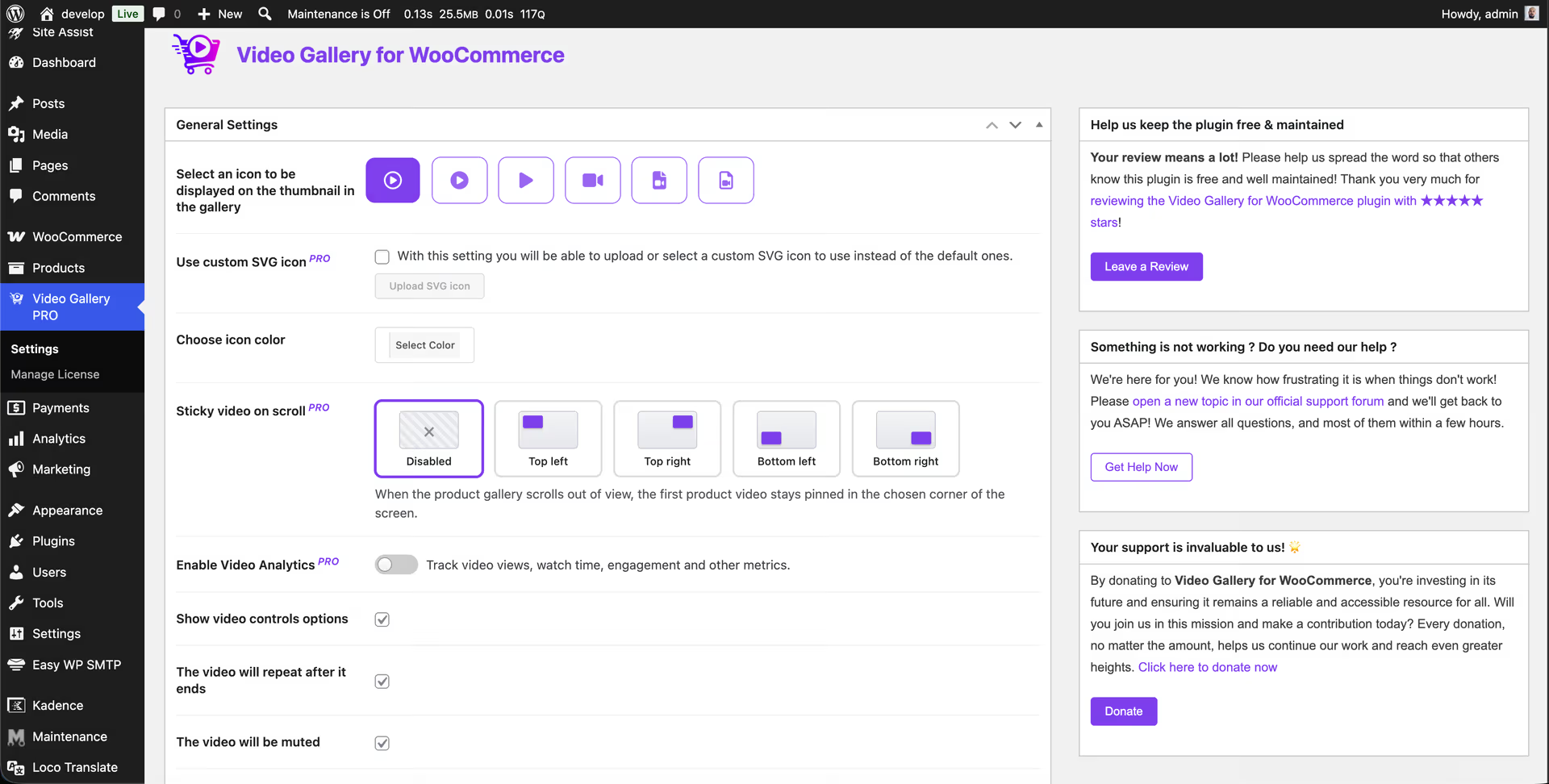
- Custom icon and colour to match the gallery play indicator to your brand rather than a generic default.
- VideoObject structured data output automatically, which helps search engines understand what your video actually contains.
Theme Compatibility
Product galleries are notoriously theme-dependent, and this is where most video plugins quietly fall apart. WooCommerce product videos are only as reliable as the gallery they sit in, and a gallery that works perfectly on Storefront can break completely on a heavily customised builder theme, and the store owner only finds out when a customer emails.
Video Gallery for WooCommerce works with the default WooCommerce templates and ships added support for widely used themes including Mojuri, Flatsome, Astra, Blocksy and Porto. Its changelog shows a steady stream of theme-specific fixes, which is a genuinely useful signal for anyone running a customised setup, it means compatibility is treated as ongoing maintenance rather than a one-time claim on a sales page.
Free vs PRO: What You Get
The free version on WordPress.org is fully functional rather than a limited trial, and it is enough to run WooCommerce product videos on a small catalog indefinitely. PRO removes the limits and adds the features larger stores tend to need once video is working.
| Feature | Free | PRO |
|---|---|---|
| Products with video | Up to 20 | Unlimited |
| Videos per product | 2 | Up to 6 |
| YouTube embeds | Not included | Yes |
| Custom SVG icons | Basic icons | Yes |
| Optimized thumbnails | Basic | Yes |
| Video SEO settings | Basic | Custom titles and descriptions |
| Video analytics | Not included | Views, watch time and more |
| Sticky video on scroll | Not included | Yes |
| Support | Community forum | Priority email |
Sticky video on scroll
When a shopper scrolls past the gallery, the playing clip does not disappear. It slides into a small floating player anchored to the corner you choose, and playback continues exactly where it left off.
The floating frame adapts to the source aspect ratio, so vertical, square and widescreen footage all display without cropping. Scrolling back up returns the video to the gallery automatically. In practice this means your best sales asset stays on screen while the shopper works through specifications and reviews.
Video analytics
PRO includes a dashboard that tracks how visitors actually engage with your WooCommerce product videos, views and watch time on every plan, with device charts, engagement metrics, location data, heatmaps and CSV export available on higher tiers. It answers the question most store owners otherwise cannot answer at all: is this video doing anything, or is it just sitting there looking nice?
YouTube integration
If your footage already lives on YouTube, PRO lets you embed it directly rather than re-uploading everything. That keeps your media library lean, your backups smaller and your hosting bandwidth down, which matters more than store owners expect once a catalog has a few hundred clips in it.
Keeping Pages Fast When You Add WooCommerce Product Videos
The most common objection to WooCommerce product videos is speed, and it is a fair one. Video files are heavy, and Core Web Vitals do not forgive heavy pages. The good news is that almost all of the risk comes from a handful of avoidable mistakes.
Compress the source files for your WooCommerce product videos before uploading. A 1080p clip at a sensible bitrate is usually somewhere between two and eight megabytes for fifteen seconds; if yours is forty, it has not been compressed.
Trim ruthlessly, nobody watches the four seconds before the product appears. Use a proper poster thumbnail so the browser paints something instantly instead of leaving a grey box that damages your Largest Contentful Paint score.
Videos here play through the built-in VideoJS player with thumbnail generation handled by the plugin, and PRO adds optimized thumbnails on top of that. Combined with sensible source files, that keeps the impact modest.
If you want to verify rather than assume, run the page through PageSpeed Insights before and after you add the clip and compare the field data.
Video SEO: Why Structured Data Matters
A video that search engines cannot identify is a video that only works for people who already reached your page. VideoObject markup tells Google what the clip contains, how long it runs and where the thumbnail lives, which is what makes video rich results possible in the first place.
The plugin outputs that structured data automatically, so you do not need to hand-write JSON-LD or bolt on another SEO plugin to handle it. On PRO you can set custom video titles and descriptions, which is worth doing on your highest-traffic products, a descriptive title like “Walnut standing desk height adjustment demo” gives search engines far more to work with than “video_final_2.mp4”.
Two habits will get you most of the remaining WooCommerce product video benefit: give every clip a descriptive filename before you upload it, and make sure the surrounding page copy actually describes what happens in the video. Search engines still read the page around the player.
Five Mistakes That Kill WooCommerce Product Video Performance
- Autoplay with sound on. Nothing makes a visitor close a tab faster. Autoplay silently, and let the shopper choose to turn sound on.
- Product videos that are too long. Attention on a product page is measured in seconds, not minutes. Anything past about thirty seconds needs a very good reason to exist.
- Burying the video below the fold. If it is not in the gallery, most shoppers will never know it exists.
- Ignoring vertical video. More than half your traffic is on a phone. A widescreen clip letterboxed into a mobile gallery wastes most of the screen.
- Uploading raw camera files. A 300MB export will hurt your page more than the video helps it. Compress first, always.
How to Know Whether It Actually Worked
Adding WooCommerce product videos feels productive, which makes it easy to skip measurement. Do not skip it. Pick a small group of products, add clips to those only, and leave a comparable group untouched for at least two to four weeks so seasonality does not distort the picture.
Then watch four numbers on the pages you changed: conversion rate, add-to-cart rate, average time on page, and return rate over the following ninety days. The last one is slow but often the most valuable, a drop in returns goes straight to your margin, and it is the clearest evidence that your WooCommerce product videos are genuinely reducing uncertainty rather than just decorating the page.
Requirements
- WooCommerce installed and active
- WordPress 5.3 or higher
- PHP 7.4 or higher
- Videos in a WordPress-supported format, MP4 and MOV work best
What Store Owners Say
The plugin holds a 5 out of 5 star rating across 41 reviews on WordPress.org, with more than 3,000 active installations.
Reviewers consistently mention two things: how quickly WooCommerce product videos can be added without touching code, and responsive support when a particular theme needs a small compatibility fix. For a plugin that has to coexist with every gallery layout in the WooCommerce ecosystem, that second point is arguably the more meaningful of the two.
Frequently Asked Questions
Do WooCommerce product videos really increase sales?
Video helps most where uncertainty is highest, clothing, furniture, tools, and anything where scale, texture or operation is hard to judge from a photograph. The mechanism is simple: fewer unanswered questions means fewer abandoned carts and fewer returns. Test it on your best sellers first and let your own data decide.
Is Video Gallery for WooCommerce free?
Yes. The free version is available on WordPress.org and supports up to 20 products with two videos each. PRO removes those limits and adds YouTube embeds, analytics, sticky video and more.
Do I need shortcodes or theme edits?
No. The plugin integrates directly with the native WooCommerce product gallery. You add a video from the product edit screen and it appears on the front end, with no code and nothing to re-apply after a theme update.
Will WooCommerce product videos slow down my pages?
Videos play through the built-in VideoJS player with thumbnail generation handled by the plugin, and PRO adds optimized thumbnails. As with any media, keep your source files reasonably compressed and your clips short for the best results.
What kind of WooCommerce product video should I start with?
A fifteen-second clip showing the product from several angles, held by a person or placed beside a familiar object for scale. No script, no music, no editing required. That single shot answers more questions than any other type of footage and takes about five minutes to film.
Getting Started
If you want to increase WooCommerce sales without rewriting your product copy or raising your ad spend, adding WooCommerce product videos is one of the highest-leverage changes available to you. It costs no ad budget, it does not require a discount, and it works on the pages you already have traffic on.
Start with your best sellers. Add one short WooCommerce product video to each, leave the rest of the catalog alone, and watch what happens to the pages that were previously photos only. Video Gallery for WooCommerce is free to try, so the only real cost is the few minutes it takes to upload your first video. You can find more store-growth walkthroughs on our homepage.