
Getting Started
Requirements
Server & Software Requirements
- WordPress 6.0 or higher
- WooCommerce 7.0 or higher
- PHP 8.0 or higher
- MySQL 5.7 / MariaDB 10.3 or higher
- At least one AI provider API key (OpenAI, Anthropic, Google Gemini, Groq, or OpenRouter)
Installation
Installing via WordPress Admin
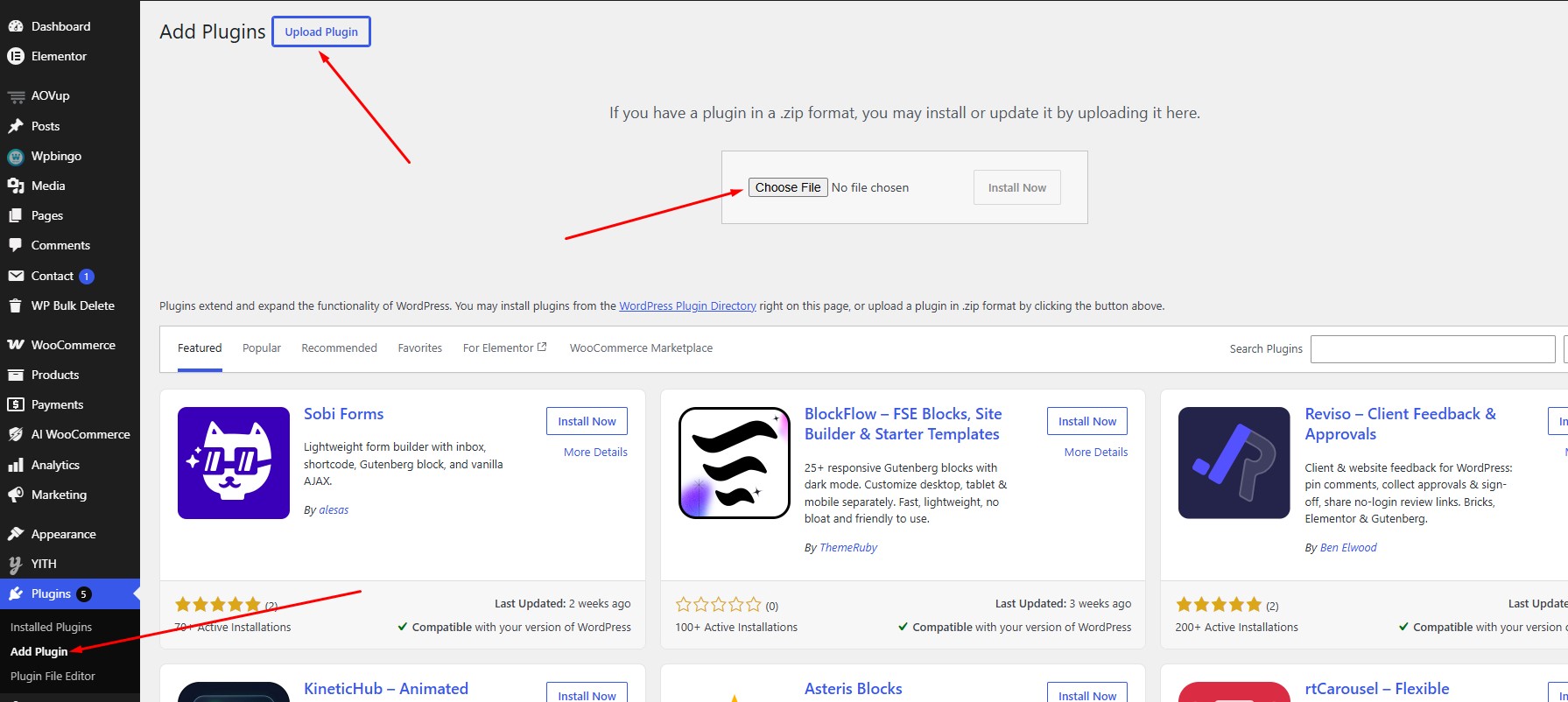
Step 1 – In your WordPress dashboard, navigate to Plugins > Add New > Upload Plugin.
Step 2 – Click Choose File and select the wpbingo-ai-woocommerce.zip file you downloaded from CodeCanyon.
Step 3 – Click Install Now, then Activate Plugin.
Installing via FTP
Step 1 – Unzip wpbingo-ai-woocommerce.zip. You will get a folder named wpbingo-ai-woocommerce.
Step 2 – Upload the folder to wp-content/plugins/ on your server using an FTP client such as FileZilla.
Step 3 – Go to Plugins in your WordPress dashboard and click Activate next to AI Commander for WooCommerce.
wbac_logs, wbac_rollback, wbac_variation_index, and wbac_queue.Activation
After Activating the Plugin
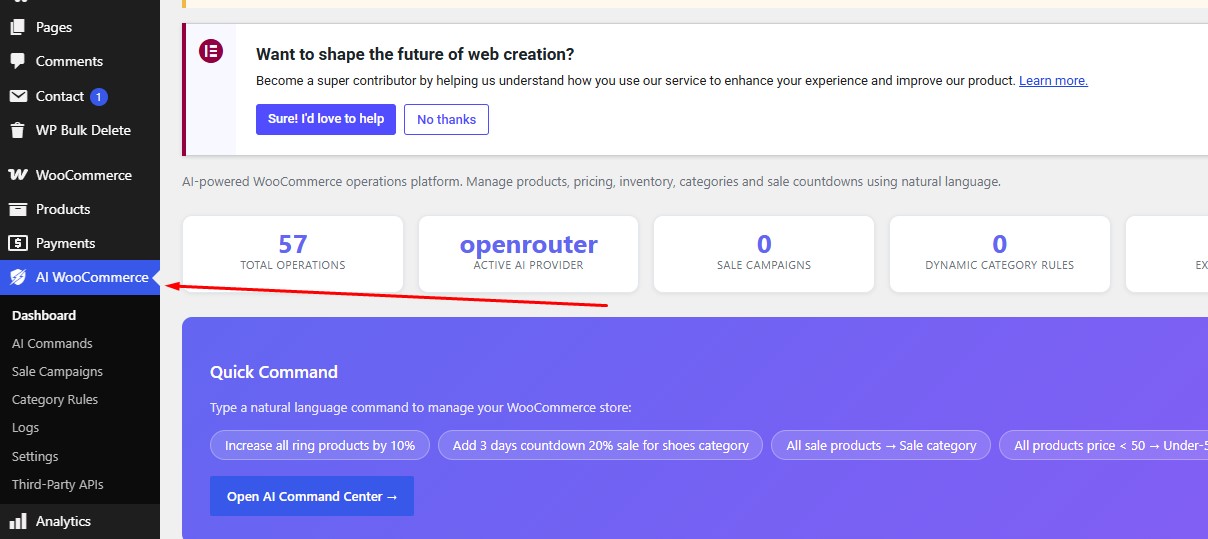
A new top-level menu item AI WooCommerce will appear in your WordPress dashboard. You will also see a notice asking you to configure at least one AI provider API key before you can run commands.
Configuration
API Keys
Where to Enter API Keys
Go to AI WooCommerce > Settings. Under the API Keys section, enter the key for each provider you wish to use.
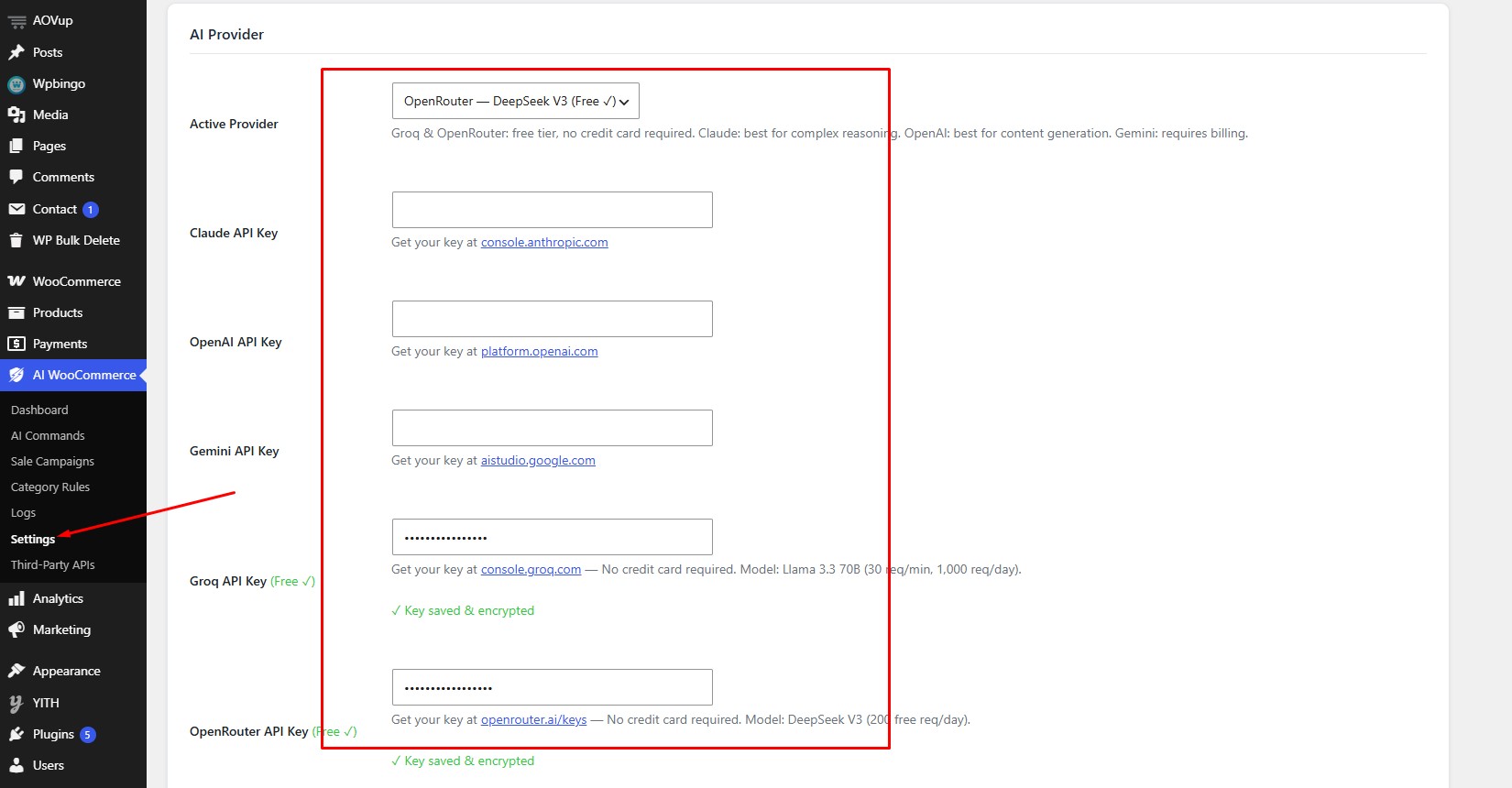
You only need to enter keys for the providers you plan to use. Leave others blank.
Provider Setup
Supported AI Providers
Primary Provider & Fallback Chain
Go to AI WooCommerce > Settings > Provider. Select your Primary Provider and optionally configure a Fallback Chain. If the primary provider fails, the plugin will automatically try each fallback in order.
Third-Party APIs
Disclosure & Data Sharing
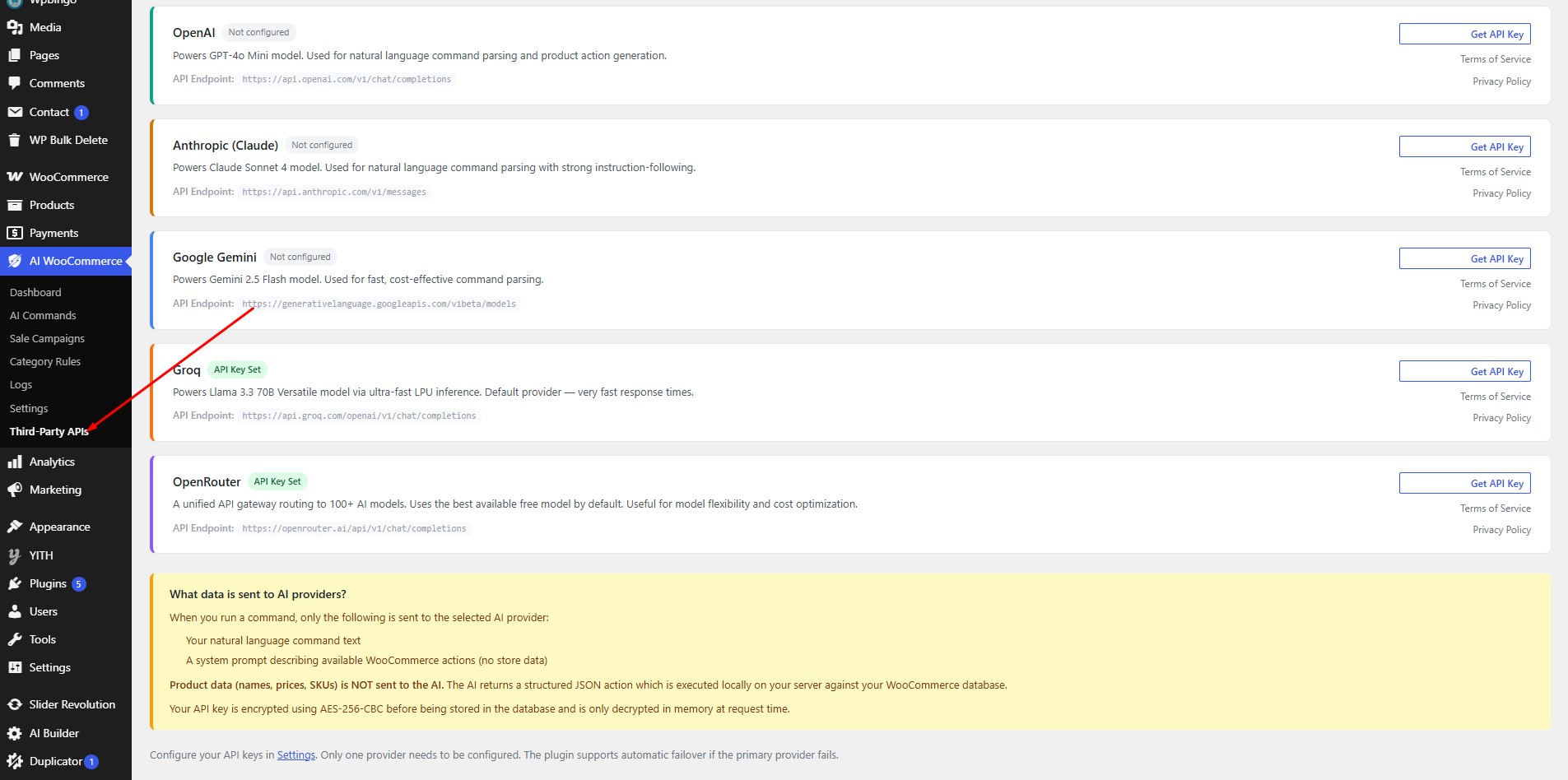
Navigate to AI WooCommerce > Third-Party APIs to view the full list of external services the plugin connects to.
When you run a command, the plugin sends a sanitized prompt (which may include product names, categories, and prices from your store) to your chosen AI provider. No customer data, order data, or personally identifiable information is ever sent.
General Settings
Available Settings
| Setting | Description | Default |
|---|---|---|
| Dry Run by Default | Show a preview before executing any command | On |
| Rate Limit | Max commands per minute per user (1–60) | 10 |
| Log Retention | Number of days to keep command logs | 30 |
| Variation Index Rebuild | Batch size for variation index cron jobs | 500 |
Using the Plugin
Command Interface
The Command Panel
Go to AI WooCommerce > Dashboard. You will see a text field where you can type natural-language commands in English, Vietnamese, Japanese, Korean, Chinese, or Arabic.
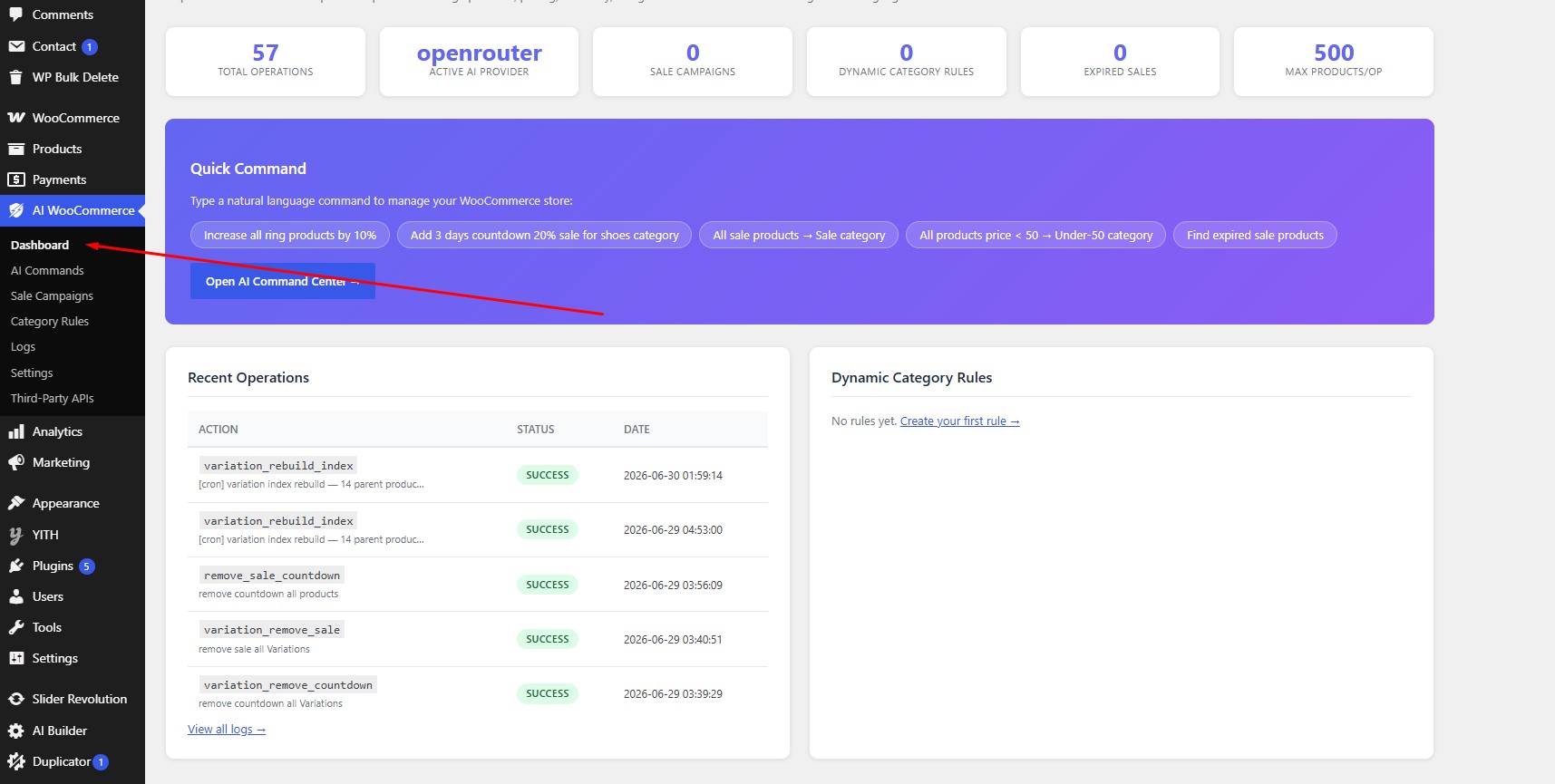
How It Works
When you submit a command, the plugin:
- Detects the language and intent of your prompt.
- Sends it to your configured AI provider.
- Parses the AI's structured JSON response.
- Validates the action against allowed types and targets.
- Executes (or previews in Dry Run) the operation on your products.
- Logs the result and stores a rollback snapshot.
After each command runs, a status badge appears in the result panel indicating the mode.
Dry Run Mode
Preview Before You Execute
Dry Run is automatically activated, the plugin processes the command fully but does not write any changes to your database. Instead, it shows you a detailed preview of exactly what would be changed.
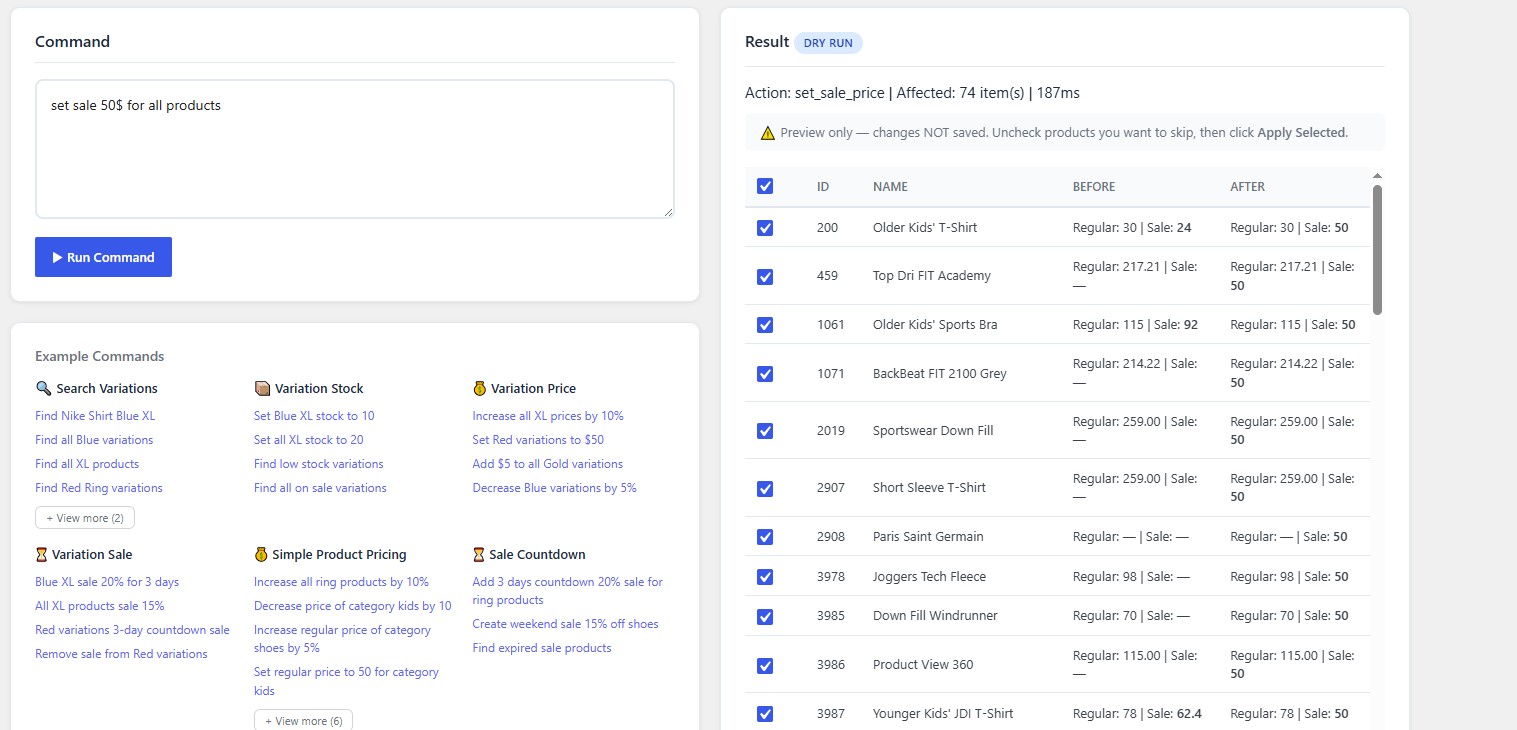
Apply Selected
Executing a Dry Run Result
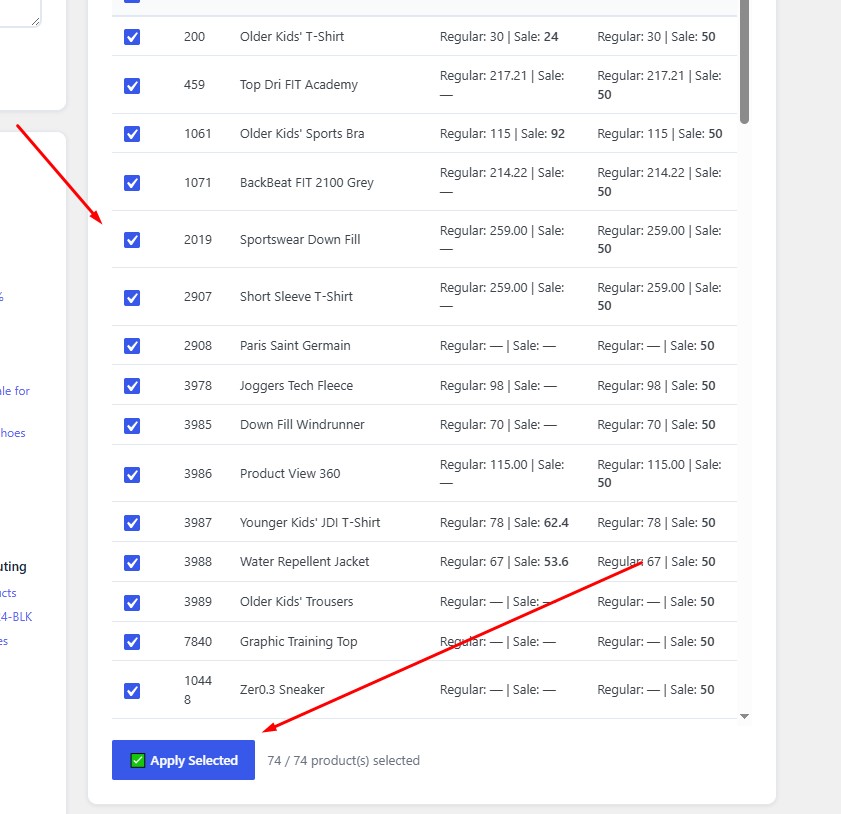
After reviewing a Dry Run preview, you can:
- Check individual products you want to apply the change to.
- Click Apply Selected to execute only those products.
- Or click Apply All to apply the entire result set.
Rollback
Undoing a Command
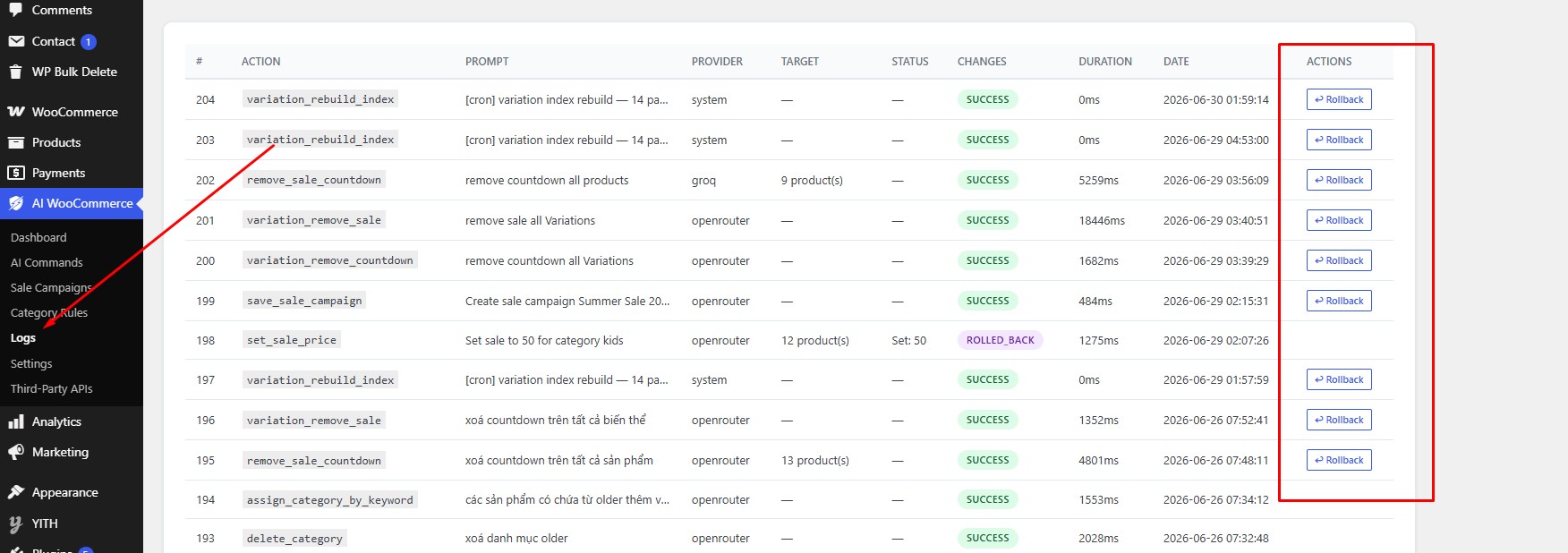
Every executed command stores a full snapshot of the affected products' previous state. To roll back:
- Go to AI WooCommerce > Logs.
- Find the command you want to undo.
- Click the Rollback button.
What Rollback Covers
| Action Type | Rollback Support |
|---|---|
| Pricing (increase, decrease, set) | ✅ Full snapshot + restore |
| Sale price & countdown dates | ✅ Full snapshot + restore |
| Stock quantity & status | ✅ Full snapshot + restore |
| Product status (publish/draft/trash) | ✅ Full snapshot + restore |
| Variation pricing & stock | ✅ Full snapshot + restore |
| Variation sale & countdown | ✅ Full snapshot + restore |
| Sale campaigns | ✅ Rollback via campaign panel |
| Dynamic category assignment | ⚠️ Re-run rule to revert |
Commands Reference
Below are example commands you can type into the command panel. The AI understands natural language — you don't need to use exact phrasing.
Pricing Commands
| Example Command | What It Does |
|---|---|
Increase all product prices by 10% | Increases regular price of all products by 10% |
Set price of Nike shoes to $59.99 | Sets the regular price of products matching "Nike shoes" |
Decrease prices in the T-shirts category by $5 | Reduces price of all products in the T-shirts category by $5 |
Set sale price of all products to 80% of regular price | Calculates and sets sale price at 20% off for all products |
Remove sale price from out-of-stock products | Clears sale price on all products with out-of-stock status |
Increase sale price of brand Adidas by 15% | Increases current sale price for Adidas brand products |
Stock Commands
| Example Command | What It Does |
|---|---|
Set stock of all products to 100 | Sets stock quantity to 100 for all products |
Mark all products in Electronics as out of stock | Sets stock status to out-of-stock for the Electronics category |
Set stock of iPhone 15 to 50 | Finds products matching "iPhone 15" and sets stock to 50 |
Sale & Campaign Commands
| Example Command | What It Does |
|---|---|
Start a 3-day sale with 20% off all products starting tomorrow | Creates a scheduled sale campaign with countdown dates |
Set sale countdown on Shoes category from Dec 1 to Dec 31 | Sets sale date range on all products in Shoes |
Remove sale countdown from all products | Clears sale end dates (keeps sale price) |
Run a flash sale: 30% off brand Nike for 48 hours | Creates a 48-hour sale campaign for Nike products |
Product Status Commands
| Example Command | What It Does |
|---|---|
Publish all draft products | Changes status of all draft products to published |
Move out-of-stock products to draft | Sets products with out-of-stock status to draft |
Trash all products in the Archived category | Moves products in Archived category to trash |
Variation Commands
The plugin can target specific variation attributes such as size, color, or any custom attribute.
| Example Command | What It Does |
|---|---|
Increase price of all Size XL variations by 10% | Applies price increase only to XL variation rows |
Set stock of Color Red variations in T-shirts to 20 | Updates stock for red color variations within T-shirts |
Set sale on Size S and M variations to $29.99 | Sets sale price on small and medium variations |
Remove sale countdown from all Blue variations | Clears sale date meta on blue color variations |
wbac_variation_index) for fast lookups. The index is rebuilt automatically via a background cron job.Dynamic Category Commands
| Example Command | What It Does |
|---|---|
Assign products containing "organic" to the Organic category | Creates a dynamic rule: any product with "organic" in its name or description is auto-categorized |
Sync dynamic category rules now | Triggers an immediate sync of all dynamic category rules |
Search & Read-Only Commands
These commands retrieve information without modifying any data. They are marked with the 🔍 READ ONLY badge.
| Example Command | What It Does |
|---|---|
Find all products under $20 | Lists products with a regular price below $20 |
Show me out-of-stock products in Electronics | Returns a list of out-of-stock products in the Electronics category |
How many products are currently on sale? | Returns a count and list of on-sale products |
List all products by brand Nike | Returns products assigned to the Nike brand taxonomy |
Sale Campaigns
Sale Campaigns allow you to schedule bulk sale operations that start and end automatically, with full rollback support.
Create a Campaign
Via Natural Language
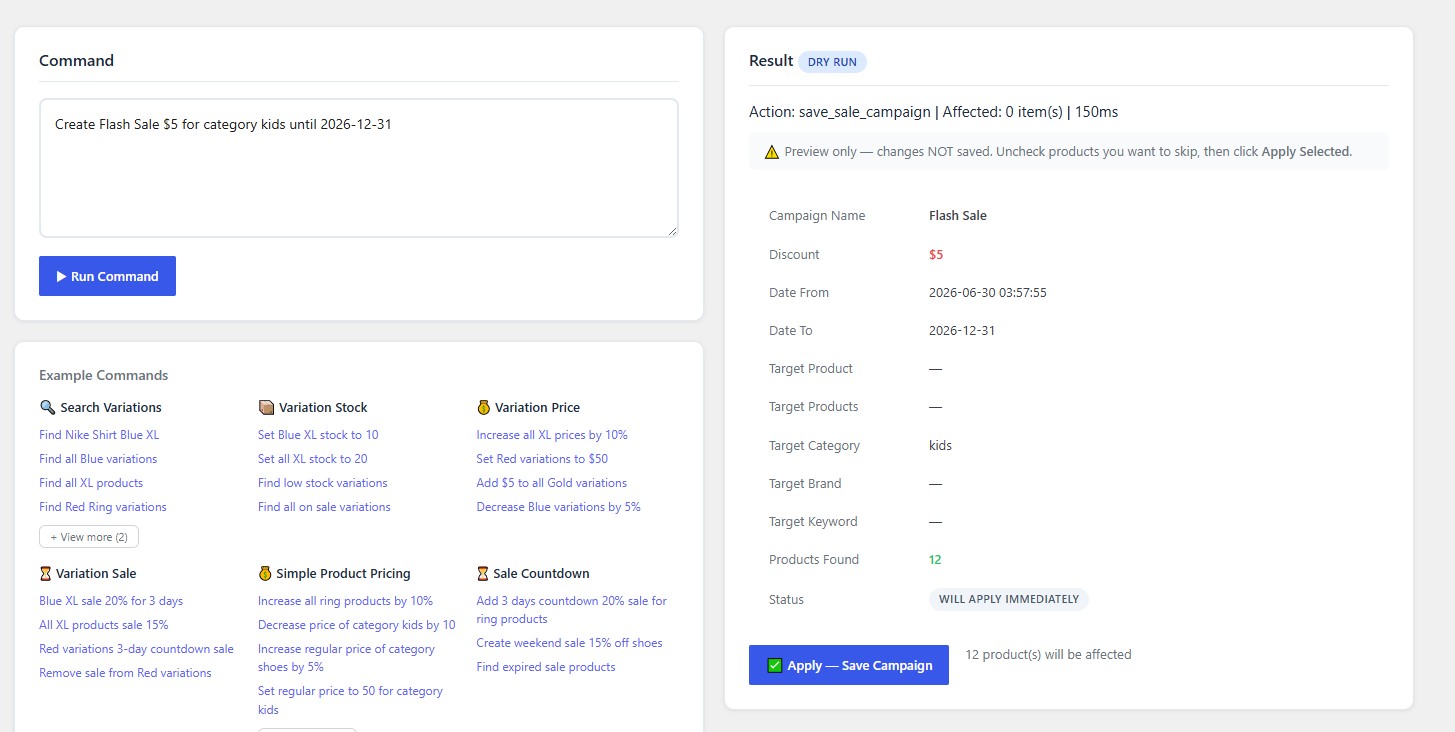
Type a time-based sale command in the command panel, for example:
Create Flash Sale $5 for category kids until 2026-12-31
The plugin will detect the schedule and create a campaign automatically. You can also create campaigns manually from the AI WooCommerce > Campaigns panel.
Manage Campaigns
Campaign Status
| Status | Meaning |
|---|---|
| Pending | Scheduled but not yet started |
| Active | Currently running — sale is live |
| Completed | End date passed — sale prices automatically removed |
| Rolled Back | Manually or automatically reverted |
Campaign Rollback
You can roll back any active or completed campaign at any time from the Campaigns panel. Rolling back a campaign restores all product prices to their pre-campaign values using the stored snapshot.
Dynamic Categories
Dynamic Category rules automatically assign products to categories based on keywords found in the product name or description. Rules are re-evaluated on a schedule.
Create Rules
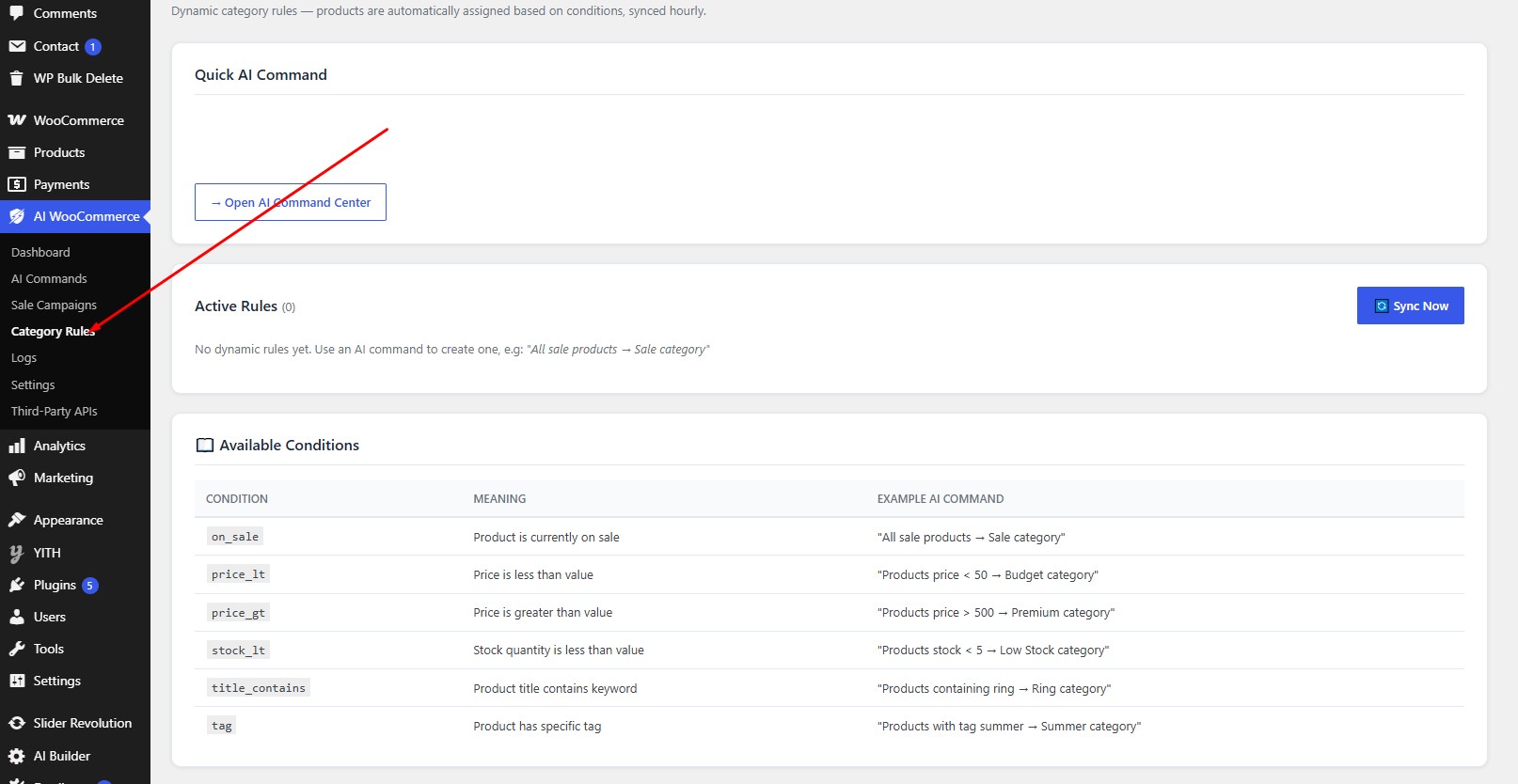
Navigate to AI WooCommerce > Dynamic Categories. Rules are created by typing a command or by filling in the rule form directly:
- Keyword — the text to search for in product name/description
- Category — the WooCommerce category to assign matching products to
- Match Mode — contains or exact
Sync & Cron
Rules are automatically synced by a WordPress cron job that runs every hour. You can also trigger a manual sync by clicking Sync Now in the Dynamic Categories panel, or by typing the command Sync dynamic category rules now.
Logs & History
Viewing Command History
Go to AI WooCommerce > Logs to see a full history of every command that has been executed.
Log Columns
| Column | Description |
|---|---|
| Action | The action type detected by the AI |
| Command | The original text you typed |
| Target | Number of products changed |
| Provider | Which AI provider was used |
| Status | Executed / Rolled Back / Failed |
| Date | When the command was executed |
| Actions | Rollback button (where available) |
Security
API Key Encryption
All API keys are encrypted using AES-256-CBC with a key derived from your WordPress SECURE_AUTH_KEY via PBKDF2-SHA256 before being stored in the database. If a plain-text key is detected (e.g. from an older version), it is automatically migrated to encrypted format on first read.
SECURE_AUTH_KEY in wp-config.php, all stored API keys will need to be re-entered as they will no longer decrypt correctly.Rate Limiting
The plugin enforces per-user rate limits on all AJAX endpoints:
- Command execution — 10 commands per minute
- Apply Selected — 5 apply actions per minute
These limits prevent accidental bulk operations and protect against misuse.
Permissions
All plugin actions require the WordPress capability manage_woocommerce. Regular shop customers and contributors cannot access the plugin dashboard or run commands.
FAQ
Can I use the plugin without an API key?
No. At least one AI provider API key is required. You can obtain a free key from Groq or use the free tier of OpenRouter to get started at no cost.
Which language can I type commands in?
The plugin supports English, Vietnamese (with or without diacritics), Japanese, Korean, Chinese, and Arabic. Other languages may work but are not officially supported.
Does the plugin affect my site's performance?
Commands run synchronously in the admin only. Large variation operations (1000+ variations) are queued as background jobs via Action Scheduler and do not block the admin interface. Bulk pricing and stock updates use optimized SQL instead of loading WooCommerce product objects one by one.
What happens if the AI provider is down?
The plugin will automatically try each provider in your fallback chain. If all providers are unavailable, you will see a clear error message. No changes are made to your store.
Can I roll back a change made days ago?
Yes, as long as the log entry has not been deleted. Log retention defaults to 30 days and is configurable in Settings. After rolling back, the snapshot rows are marked as restored and cannot be reused.
What happens when I uninstall the plugin?
All plugin data is removed: the 4 custom database tables, all settings and API keys, scheduled cron jobs, and transients. Your WooCommerce products are not affected.
Is my store data sent to AI providers?
Only sanitized product data relevant to your command (such as product names, categories, and prices) is included in the prompt. No customer data, order information, or payment details are ever sent.
Information
Thank you for using AI Commander for WooCommerce!
We hope it saves you hours of manual product management.
- Email: [email protected]
- Support: Wpbingo ticksy
- Facebook: Wpbingo
- Website: wpbingosite.com